What It Does
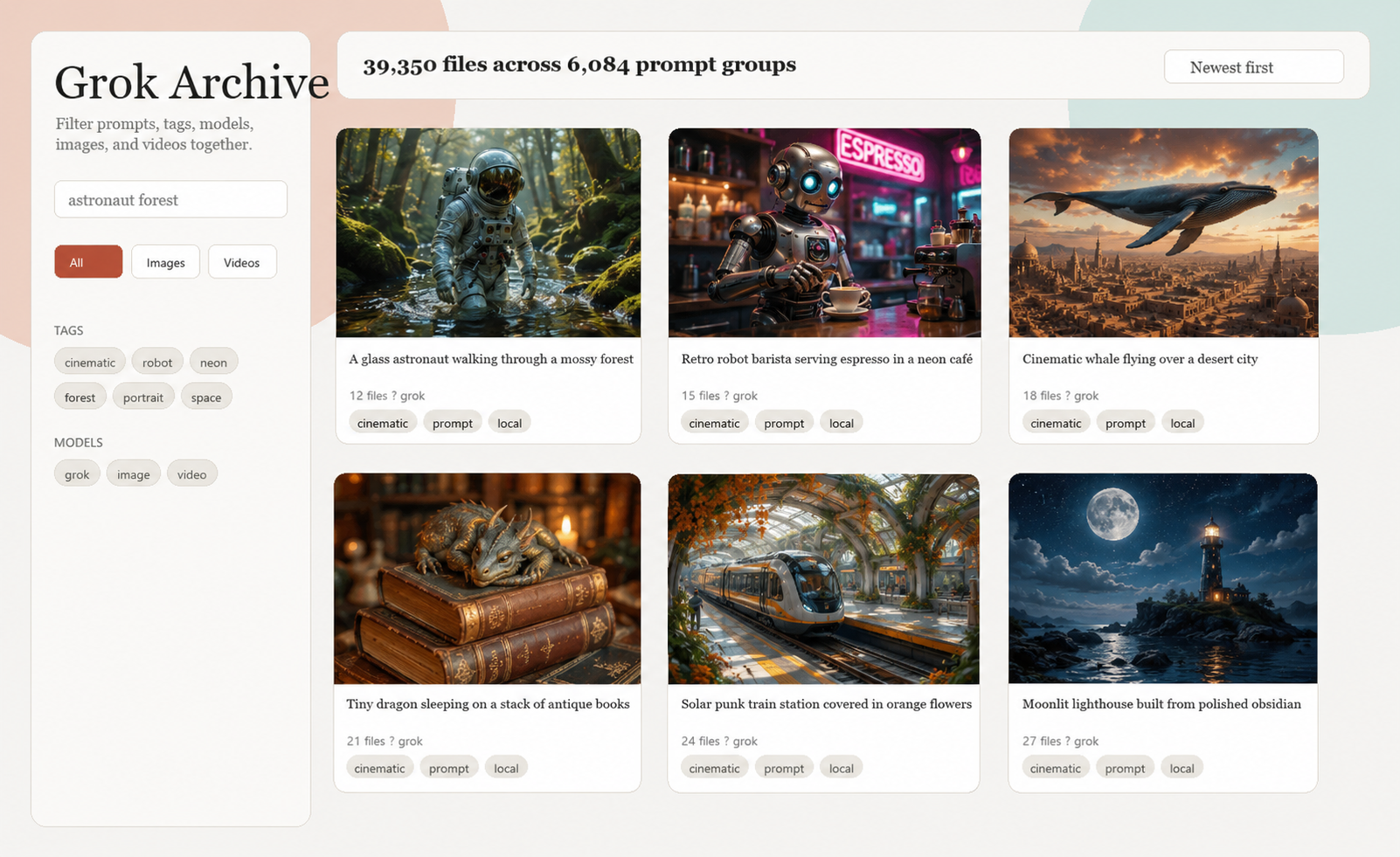
Downloads Grok Imagine favorites into local folders, saves prompt metadata in metadata.json, and builds a local HTML gallery with search, tags, model filters, images/videos filters, parent previews, and prompt grouping.
The downloader is resumable. If it stops, rerun it. Existing IDs are skipped.
What Stays Private
Your cookies, prompts, images, videos, and metadata stay on your machine. The tool does not upload anything and does not use analytics.
Never post or commit your real curl_samples.txt. It may contain active login cookies.
Gallery Features
The gallery is built for large prompt libraries where one prompt may produce many images or videos.
- Prompt groups: media created from the same normalized prompt is grouped together.
- Same-prompt browsing: open a focused view showing every image/video generated from one prompt.
- Prompt visibility: prompt text is shown in the gallery and can be copied for reuse.
- Search: search prompt text, generated tags, model names, and local filenames.
- Filters: filter by images, videos, prompt tags, and model names.
- Sorting: sort by newest first, oldest first, prompt A-Z, or model A-Z.
- Thumbnails: image thumbnails are made with Pillow; video thumbnails use FFmpeg.
- Parent previews: when parent metadata exists, the gallery can show the parent media and prompt.
Install On Windows
python -m venv .venv
.\.venv\Scripts\Activate.ps1
python -m pip install -r requirements.txt
python archive.py check
Install ffmpeg for video thumbnails. Windows users can install it with Winget or download it from the official FFmpeg site.
Install On Mac
python3 -m venv .venv
source .venv/bin/activate
python -m pip install -r requirements.txt
python archive.py check
Install FFmpeg with Homebrew:
brew install ffmpeg
First-Time Workflow
Use this sequence the first time you archive your Grok Imagine library.
- Install Python dependencies and optionally install FFmpeg for video thumbnails.
- Capture
curl_samples.txt from your logged-in browser.
- Run
python archive.py check to verify the environment.
- Run
python archive.py download to download media and prompt metadata.
- Run
python archive.py gallery-incremental to build the local gallery.
- Open
gallery_incremental/index.html in your browser.
python archive.py check
python archive.py download
python archive.py gallery-incremental
Create curl_samples.txt
- Open Grok Imagine saved/favorites in your browser and sign in.
- Open DevTools, go to Network, enable Preserve log, and filter Fetch/XHR.
- Refresh the page and find
https://grok.com/rest/media/post/list.
- Right-click the request and choose Copy as cURL (bash).
- Create
curl_samples.txt beside the scripts and paste the copied command.
Download
python archive.py download
Direct script command:
python downloader.py --curl curl_samples.txt --grok-favorites --max-pages 5000 --quiet
Build Gallery
python archive.py gallery-incremental
Open gallery_incremental/index.html. The incremental gallery skips existing thumbnails when you add new downloads later.
Updating Your Local Archive Later
After you generate or save more Grok media, rerun the same two commands. Existing media IDs and existing thumbnails are skipped.
python archive.py download
python archive.py gallery-incremental
If Grok authentication fails, capture a fresh browser cURL request and replace curl_samples.txt, then rerun the commands.
Sorting And Filtering
Use the sidebar to combine search, media type, tags, and model filters. Use the top-right sorter to switch between newest, oldest, prompt A-Z, and model A-Z.
Prompt Workflows
Click or copy prompt text to reuse it. For prompts with many generations, open the same-prompt view to inspect every related image or video together.
Use From An IDE
Open the folder in VS Code, PyCharm, Cursor, or another IDE. Use the IDE terminal for the same commands. No AI assistant is required.
python archive.py check
python archive.py download
python archive.py gallery-incremental
Publish This Guide With GitHub Pages
This guide is available as docs/index.html, which GitHub Pages can publish directly.
- Push the repository to GitHub.
- Open the repository Settings page.
- Go to Pages.
- Choose Deploy from a branch.
- Select your default branch and the
/docs folder.
- Save and wait for GitHub to publish the site.